

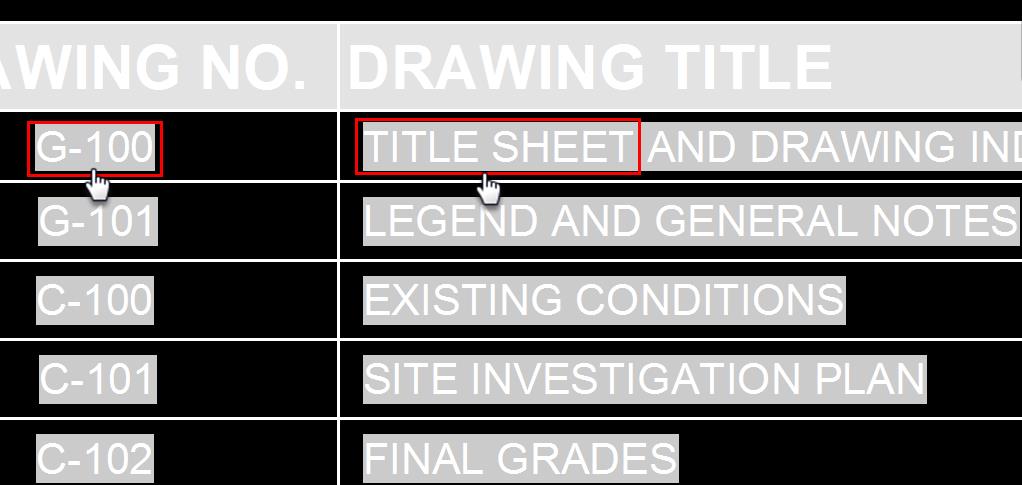
Over the past few weeks I have been working in Civil 3D on a large design using the sheet set manager to populate data on the sheets and in the table. If you are not using the sheet set manager in AutoCAD or Civil 3D please give it a try, you might be surprised at how efficient you will become. When I went to edit the table (shown below in Figure 1 ) I could not double-click to edit the field or change the text. What happened?
Figure 1: Double-click text editing
Somehow my PICKFIRST variable changed. The PICKFIRST variable allows you to select objects, then start a command and apply to those objects. If PICKFIRST is off (set to 0), you have to start the command first then pick the object. Setting PICKFIRST to 1 or enabling it gets you back to the behavior where you can select the object then launch the command (double-click). Below is a snapshot from AutoCAD help.
Figure 2: AutoCAD help

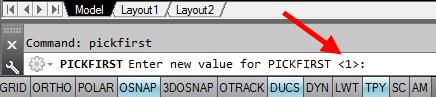
How do we change this? You can simply type PICKFIRST at the command prompt and change the value on that line as shown in Figure 3.
Figure 3: Command Line Entry
You can also bring up the options dialog box. There are several ways to accomplish this. You can type options at the command prompt or simply right click in the command area to name two. Navigate to the section modes section and check the Noun/verb selection as shown in Figure 4.
Figure 4: Options Dialog Box

Now when you double-click on objects that have specific editing tools you will be able to perform the functions necessary to complete the task.